
If you’ve ever spent an afternoon manually renaming dozens of measures, moving calculations into the right measure tables, or searching through a semantic model for missing descriptions, you’ll understand why the Power BI modeling MCP server feels long overdue.
The Power BI modeling MCP server gives an AI assistant a direct line into your semantic model. You describe what you want in natural language, and it carries out the work instead of you clicking through each step by hand. It does not replace modeling judgment, DAX know-how, or the need to review what changed. It speeds up the routine parts of modeling and makes them easier to track and repeat across models and teams.
This guide walks through what the server is, how it fits into the MCP pattern, how to get it running in VS Code with GitHub Copilot, and a quick demo of where AI-assisted semantic modeling actually pays off.
Key takeaways
- The Power BI modeling MCP server lets an AI assistant work directly inside a Power BI model using plain language. Instead of clicking through the interface or handwriting TMDL, you can ask it to read, restructure, and document your model for you.
- It connects to Power BI Desktop, a Fabric workspace, or a Power BI Project (PBIP) folder.
- In practice, it can create measures, spot modeling problems, and fill in missing documentation with far less manual effort.
What is Model Context Protocol (MCP)?
Model Context Protocol (MCP) is an open standard that allows AI applications to interact with external tools, applications, and data sources through a consistent, standardized interface. Instead of building a separate custom integration between every AI application and every external system, MCP provides a common protocol for communication.
For example, in the Power BI ecosystem, GitHub Copilot running in Visual Studio Code can connect to a Power BI MCP server and interact with Power BI semantic models.
MCP typically involves three main components:
Host — The application that runs the MCP client and provides the environment in which the AI interaction takes place. For example, Visual Studio Code (VS Code) can act as an MCP host.
Client — The component within the host that connects to an MCP server and communicates with it. For example, GitHub Copilot can act as the MCP client.
Server — A local or remote program that exposes tools, resources, and other capabilities to the AI application. In this case, the Power BI MCP Server exposes Power BI capabilities that an AI agent can use.
For the fuller picture on how MCP works and why it’s spreading fast, we’ve covered it in Model Context Protocol (MCP) 101 and The definitive guide to Model Context Protocol.
What the Power BI modeling MCP server actually does
Microsoft shipped the Power BI Modeling MCP Server as an official VS Code extension in November 2025. It exposes semantic modeling operations, TMDL edits, DAX creation, best-practice checks, over MCP, so a GitHub Copilot session can read your model, propose changes, and apply them against Power BI Desktop, a Fabric workspace, or a PBIP folder.
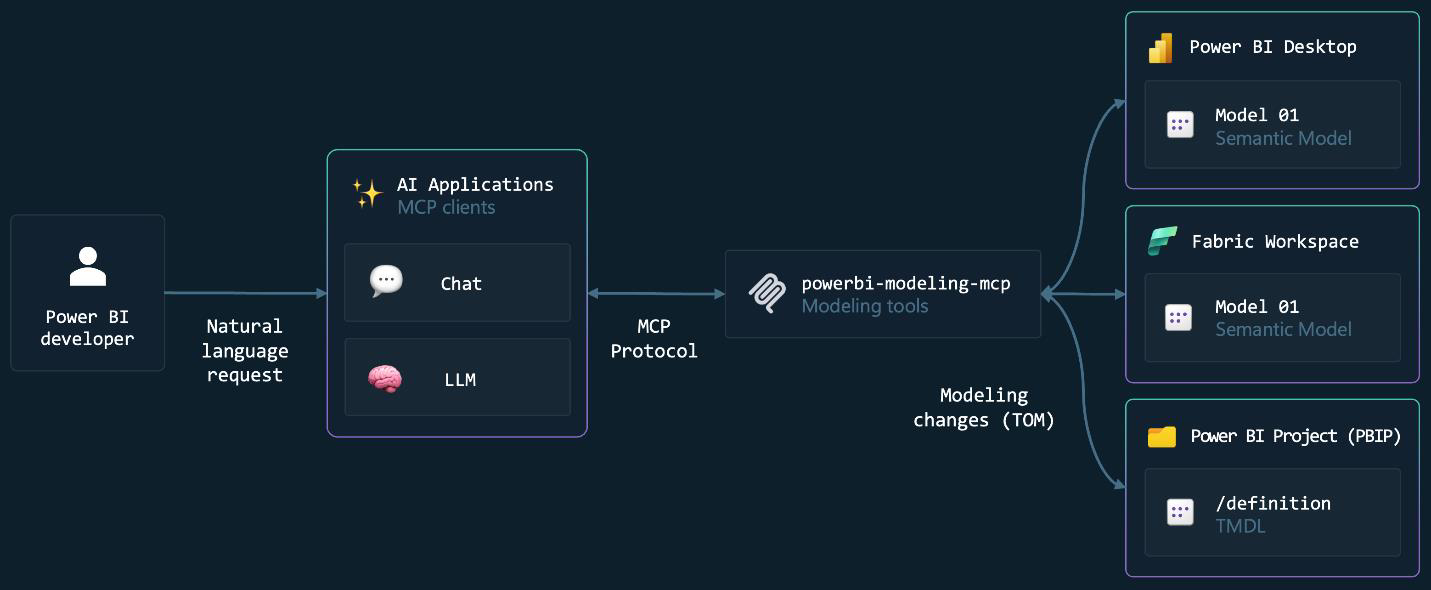 Figure 1. How a natural-language request flows from VS Code through the MCP server into your semantic model. (Source: Microsoft)
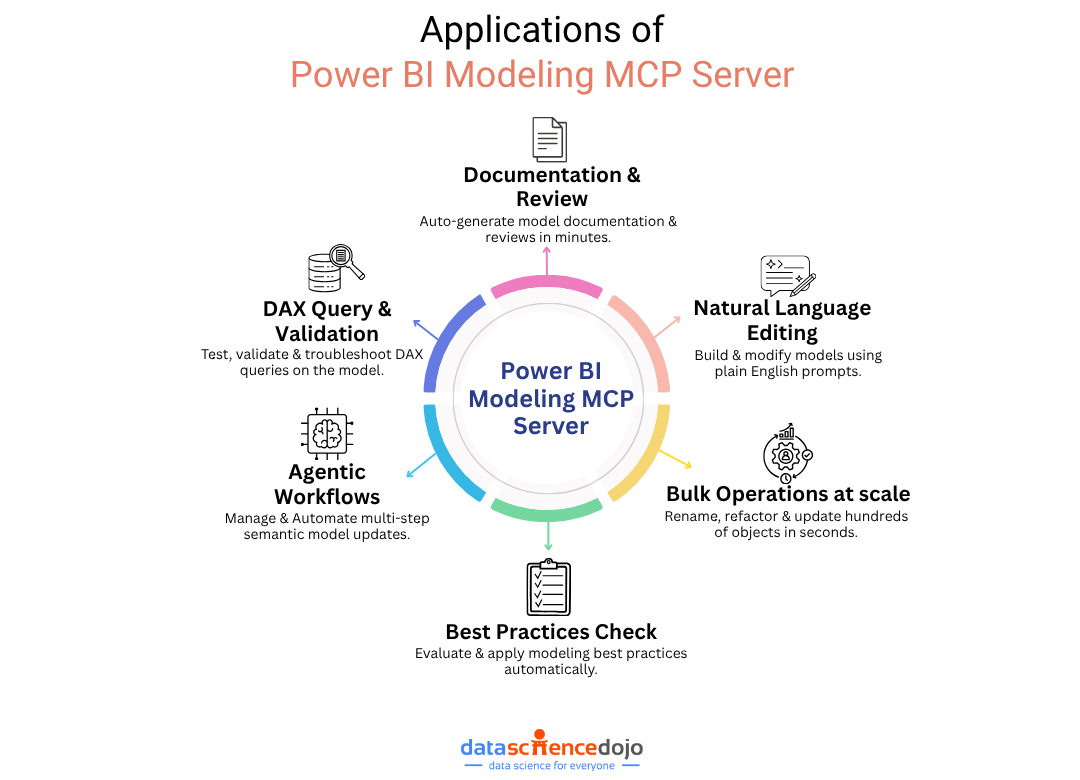
Here is what it can do:
- Documentation and review — Auto-generate model documentation and reviews in minutes.
- Natural language editing — Build and modify models using plain English prompts.
- Bulk operations at scale — Rename, refactor, and update hundreds of objects in seconds.
- Best practices check — Evaluate and apply modeling best practices automatically.
- Agentic workflows — Manage and automate multi-step semantic model updates.
- DAX query and validation — Test, validate, and troubleshoot DAX queries on the model.
The practical value here is simple: it cuts down the friction of repetitive semantic model work while leaving the modeler in control of the outcome. Treat it as a productivity layer sitting on top of existing modeling practice.
Before vs. after MCP
Here is the shift, in practical terms:
| Modeling task | Before MCP | After MCP |
|---|---|---|
| Moving measures into a dedicated table | Manual, item-by-item work inside the UI | Describe the goal in plain language and let the assistant apply it |
| Adding descriptions across dozens of columns | Repetitive manual entry or custom scripts | One instruction covers the bulk update |
| Auditing naming consistency | Manual review, easy to miss inconsistencies | Assistant scans the model and surfaces issues |
| Bulk edits across large models | Slow, repetitive UI actions | Faster, with far less manual effort |
| Documentation and review | Time-consuming to compile by hand | Easier to generate, read, and check |
In short, there is no magic here — just less manual effort on well-understood modeling tasks, with the modeler still on the hook for confirming the end result matches intent.
Setting up the Power BI modeling MCP server in VS Code
Now the hands-on part. We will install the extension, confirm the connection, check a few optional safety flags, and point it at a model.
Prerequisites
- VS Code
- GitHub Copilot enabled in VS Code
- Power BI Desktop File, or access to a Fabric workspace / PBIP folder
If this is your first time trying it, start with a non-production model. It is much easier to gauge how the assistant behaves before pointing it at anything shared or business-critical.
Step 1 — Install the extension
Open VS Code, head to the Extensions panel (Ctrl+Shift+X), and search for Power BI Modeling MCP Server. Install it the same way you would any other extension.
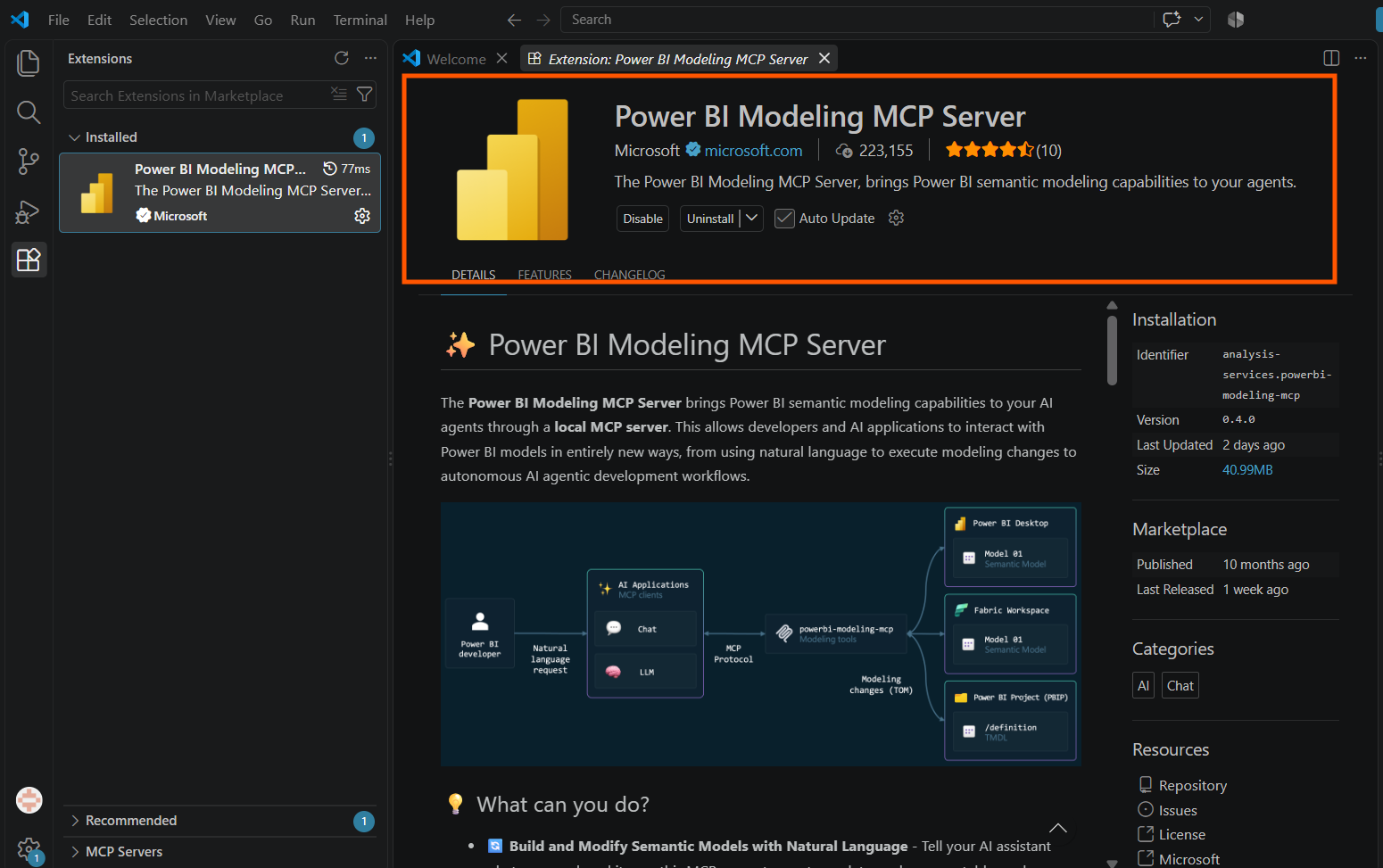 Figure 2. The Power BI Modeling MCP Server extension page in VS Code.
Step 2 — Confirm the server is installed
Open GitHub Copilot Chat and click the settings icon. Under MCP Servers, you should see powerbi-modeling-mcp listed.
This step matters more than it looks. If Copilot cannot see the server, it has no way to act on your actual model.
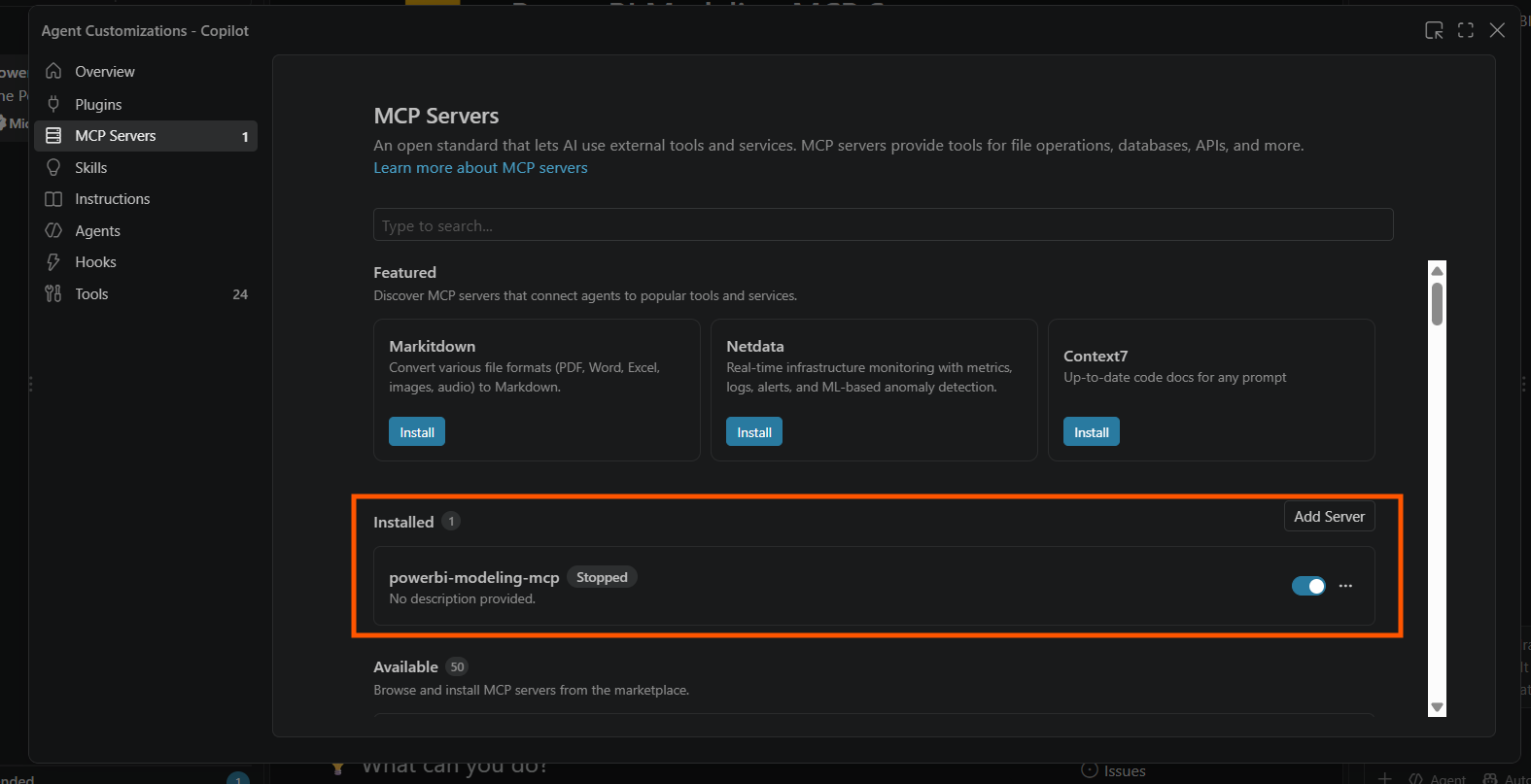 Figure 3. powerbi-modeling-mcp listed under Copilot’s MCP Servers panel.
Step 3 — Configure server arguments (optional but recommended)
The server accepts a handful of command-line flags worth knowing, especially if you are testing across different environments or want safer defaults out of the gate.
--skipconfirmation— Skips confirmation prompts for model changes--readonly— Restricts the server to read-only access--start— Starts the server
Set these under VS Code Settings → search MCP → Power BI Modeling MCP Server → Args, as a space-separated string. For example:
--start --skipconfirmation --readonly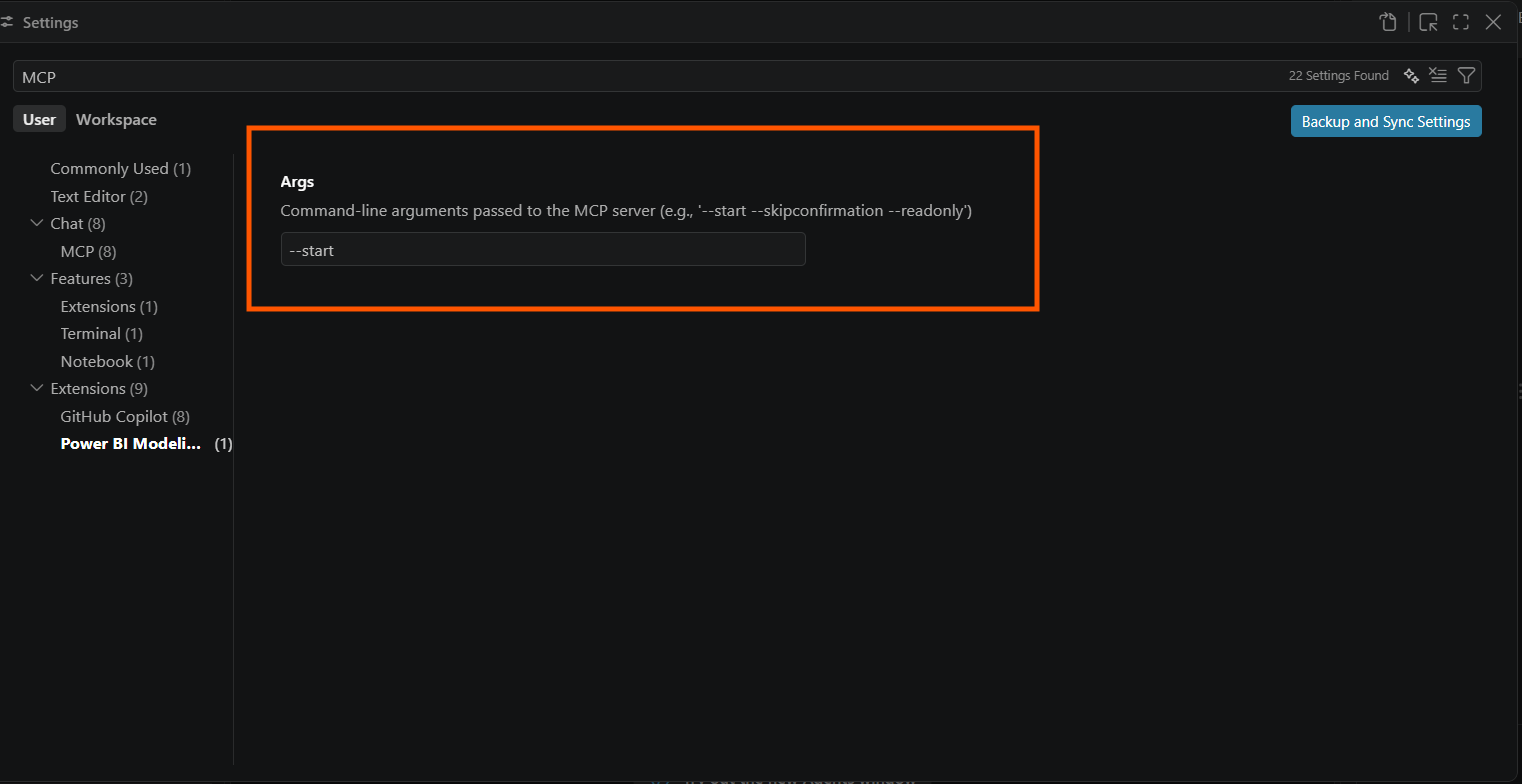 Figure 4. The Args field in VS Code Settings where these flags are added.
If you are still learning the tool, --readonly is the sensible default. Test discovery, documentation, and best-practice prompts first, and only turn on write access once you trust how it behaves.
Step 4 — Connect to your model
Once the server shows up, connect it explicitly to a model before asking for any changes. The exact phrasing depends on where the model lives:
Power BI Desktop:
Open Power BI Desktop locally with your report and semantic model loaded. Then connect to the model using the local Power BI Desktop instance.
Connect to '[File Name]' in Power BI Desktop.Fabric workspace:
Connect to semantic model '[Semantic Model Name]' in Fabric Workspace '[Workspace Name]'Power BI Project (PBIP) files:
Open semantic model from PBIP folder '[Path to the definition/TMDL folder in the PBIP]'Step 5 — Confirm the connection
For this demo, we’re connecting to a Sales Dashboard Power BI Desktop file:
Connect to Power BI Desktop file 'Sales Dashboard'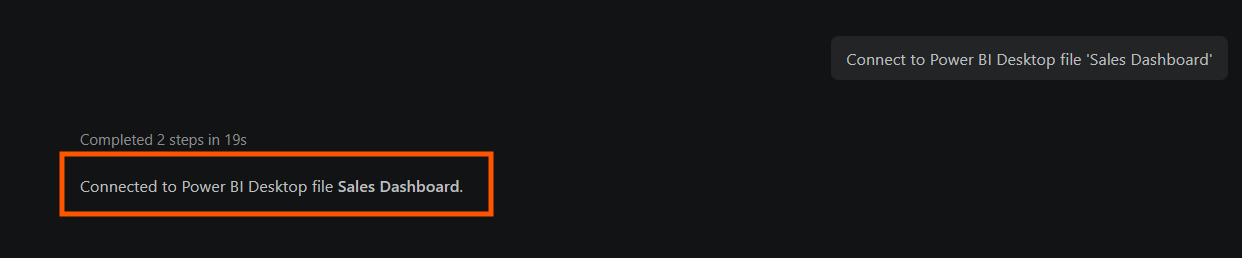 Figure 5. Connected in under 20 seconds and ready for the next prompt.
Before making any changes, it is worth firing off one quick discovery prompt — something like “List the tables in this model” or “Summarize the measures in the Sales table.” That confirms that the assistant is reading your live model rather than answering generically.
Three practical use cases
With the connection live, here is what three practical prompts produce against the Sales Dashboard model.
Use case 1 — Bulk restructuring
Prompt: Create a dedicated measure table and move all measures from the Sales and Finance tables into it
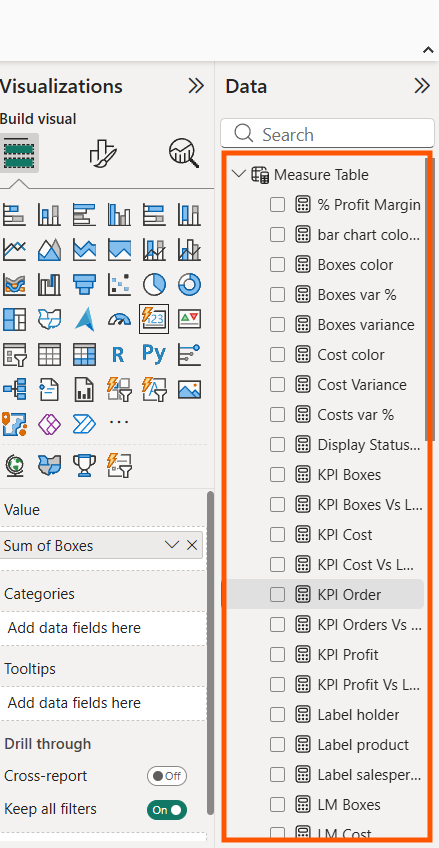 Figure 6. Result: A new Measure Table appears in the Fields pane in Power BI Desktop, with measures moved out of Sales and Finance tables.
This is a good example of where AI-assisted semantic modeling genuinely earns its place. The request is clear, repetitive, and easy to check afterward — exactly the kind of housekeeping that improves a model but keeps getting put off because it is tedious.
Use case 2 — Best practice validation
Prompt: Check this model against Power BI best practices and tell me what’s wrong
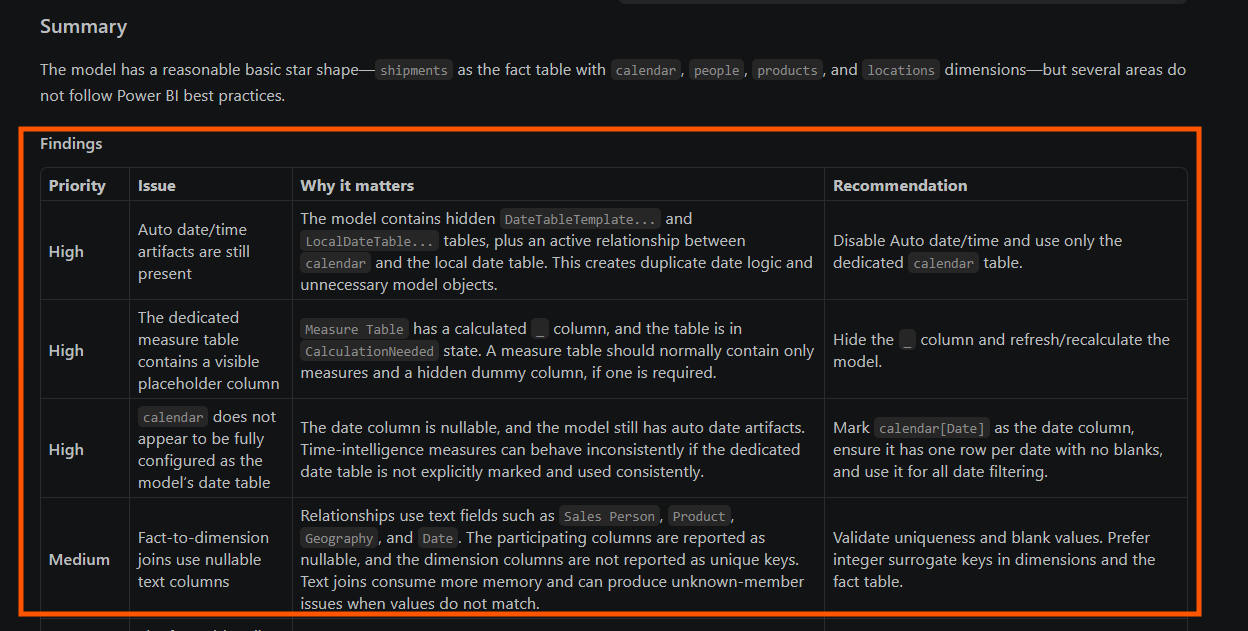 Figure 7. The assistant returns a prioritized list of findings with the issue, why it matters, and a suggested recommendation.
A review like this is especially useful during cleanup, handoff, or when hardening a model before it goes wider. It gives you a faster starting point — and it helps newer modelers understand not just what got flagged, but why it matters.
Use case 3 — Automatic documentation
Prompt: Create documentation on the tables and measures used in this report, explaining the meaning. This documentation should be helpful for users viewing this report
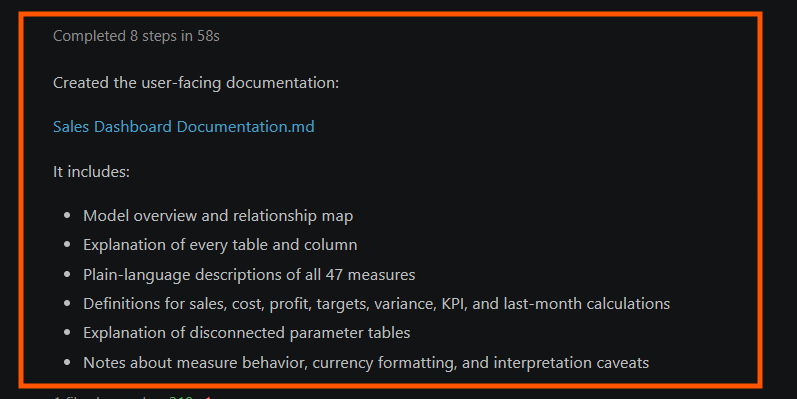 Figure 8. Output: a full Sales Dashboard Documentation.md file covering tables and measures generated in under a minute.
For teams, this might be the single highest-value workflow of the three. Documentation usually gets postponed because it takes real time, but once the effort drops this low, keeping it current actually becomes realistic — which helps report consumers, but also onboarding and peer review.
More use cases to try
Beyond the three demos above, a few more scenarios are worth exploring once you are comfortable with the basics.
DAX measure creation and refactoring
Examples:
- Create a Sales YTD measure
- Refactor the Total Margin measure using variables
- Identify measures that may be overly complex or repetitive
Here, the assistant can help draft or rework DAX in the context of your actual model, which tends to be more useful than a generic DAX answer pulled from nowhere. Because it can inspect related tables, measure names, and model structure, the output stays grounded in what you actually built.
DAX performance analysis
The server can also support query and measure review, checking things like:
- Total execution time
- Formula Engine time
- Potential bottlenecks
Used carefully, this can help you compare versions of a measure or pinpoint where a calculation needs simplifying. As always, validate performance guidance against the real model and workload — semantic performance shifts with model size, filter patterns, and how the report is actually used.
Large-scale operations
This is where the Power BI Modeling MCP Server is at its most useful:
- Renaming large groups of measures
- Applying formatting standards
- Centralizing measures
- Generating descriptions
These are the tasks everyone puts off because they are tedious, even though they clearly improve model quality. Natural-language bulk operations make that cleanup far more approachable — especially paired with a careful review after each batch of changes. If you’re leaning further into agentic workflows generally, our OpenAI agents SDK guide covers the broader pattern.
Security and governance considerations
Security deserves direct attention here, especially once an AI assistant has a live connection to your modeling environment. For a broader look at the risk landscape, see the state of MCP security in 2025.
A few practical guidelines:
- Start in read-only mode. If you are new to the tool, begin with
--readonlyand use it for exploration, documentation, and validation before turning on write access. - Test with non-production models. Test prompts on a development or sample model so you can see how the assistant behaves without any real risk.
- Apply least-privilege permissions. Give the MCP Server and the AI assistant only the permissions they actually need. Avoid using highly privileged accounts or granting write access across workspaces when it is not required. Keep access aligned with your existing Power BI and Microsoft Fabric security model.
- Protect sensitive data. Be careful when connecting the assistant to semantic models that contain confidential, personal, financial, or otherwise sensitive information. Review what data the assistant can access and avoid including sensitive information in prompts, logs, or configuration files unless it is necessary and approved.
- Review changes before finalizing. Review changes before treating them as final. Natural-language instructions can be misread, especially in larger models with ambiguous naming.
- Use logs for troubleshooting and auditing. Logging makes troubleshooting and audit-style review much easier while you are still testing new workflows.
- Follow your organization’s security policies. Treat the MCP Server as another component in your data environment. Make sure its configuration, authentication, permissions, and use of AI services follow your organization’s security, privacy, and governance requirements.
Where the Power BI modeling MCP server actually pays off
The Power BI Modeling MCP Server is one of the more genuinely useful examples of AI showing up in day-to-day BI work. It does not make semantic modeling effortless. It strips out the manual overhead around repetitive, structured tasks in a Power BI semantic model.
For Power BI practitioners, BI engineers, and analytics engineers, the standout use cases are easy to spot: bulk restructuring, best-practice review, DAX assistance, and fast documentation. All of them save time without asking you to hand over control of the model. It is not a substitute for solid modeling practice; it is a useful layer on top of it that makes semantic model development faster, more scalable, and considerably less repetitive.
If you want a concrete first step, install the extension, start in --readonly mode with a non-production model, and try one prompt: “Audit this model for naming inconsistencies and missing measure descriptions.” That one exchange usually surfaces a page of real findings within a few seconds, and it lets you see how the assistant behaves against your model before you give it write access.
FAQ
Which Power BI environments does the modeling MCP server support?
Three: a local Power BI Desktop file, a semantic model in a Fabric workspace, and a Power BI Project (PBIP) folder on disk. The connection prompt is slightly different in each case (see Step 4 above), but the same modeling operations are available across all three.
Do I need a paid GitHub Copilot subscription to use it?
Not necessarily. The Power BI Modeling MCP Server can be used with any MCP-capable client. When using it through GitHub Copilot in VS Code, GitHub Copilot Free can work for light use, but your available usage is subject to the limits of your Copilot plan. A paid plan provides higher usage limits and access to additional Copilot capabilities.
Is it safe to run against a production model?
Not without care. Start with --readonly on a non-production copy so you can see how the assistant interprets your prompts. Once you have a feel for it, enable write access with least-privilege permissions on the account it authenticates with, and keep change review in place before finalizing edits. Aligning it with your existing Power BI and Fabric security model is the guiding principle.
How does this compare to writing TMDL by hand?
You are still writing TMDL, but the assistant handles the mechanical parts — renames, moving measures, adding descriptions, refactoring measure logic — so you can focus on modeling decisions. It is closest to a very fast pair-modeler who knows the syntax and needs you to review the output.
Ready to see where AI fits into your BI stack beyond modeling? Dive into how LLMs are reshaping BI dashboards.
Want to build AI agents that can reason, plan, and execute autonomously?
Learn more